
Easiest Tablets for Grandparents: Top Picks Compared
Affiliate Disclosure: This post contains Amazon affiliate links. As an Amazon Associate, I earn from qualifying purchases. I only recommend products I’d genuinely suggest to a friend.
If you’re shopping for the easiest tablets for grandparents, the honest truth is that most tablets on the market are built for people who are already comfortable with technology — not for someone picking up their first one at 70 or 80. The good news is there are now several genuinely simplified options, and picking the right one comes down to a handful of clear questions rather than technical specs.
This guide walks through those questions and a few specific tablets worth considering.
TL;DR
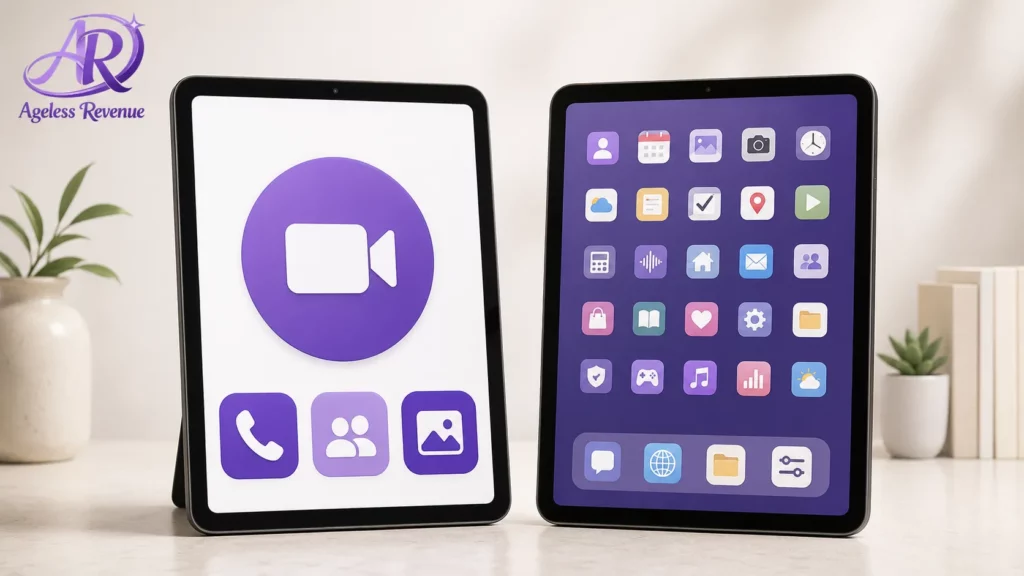
- The biggest usability difference isn’t the operating system — it’s whether the tablet has a simplified home screen designed around a handful of large icons.
- Video calling ease matters more than almost any other feature for most families — check specifically how many taps it takes to start a call.
- Purpose-built senior tablets (like GrandPad) cost more but require far less ongoing tech support from family.
- A standard iPad or Fire tablet, set up once by a family member, is usually the better value if someone nearby can help with occasional troubleshooting.
- Cellular-connected tablets remove the “is the WiFi working” problem entirely, which is often the actual source of most tech support calls.
Purpose-Built Simple Tablets vs. Standard Tablets: The Real Choice
Similar to the phone category, there are two genuinely different products competing for the same buyer here.
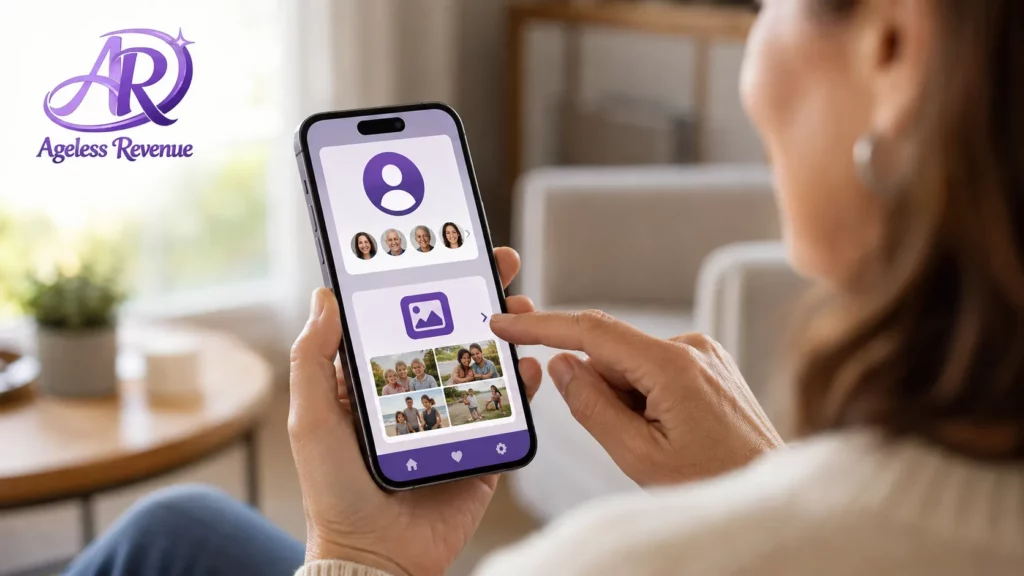
Purpose-built senior tablets, like GrandPad, are designed from the ground up with a single simplified home screen — usually just a handful of large icons for calling family, viewing photos, and a few curated apps. They typically include a cellular connection built into the monthly cost, so there’s no WiFi setup required at all, and family members manage the contact list and photo sharing remotely through a companion app.
Standard tablets — an iPad, Samsung Galaxy Tab, or Amazon Fire tablet — cost less upfront and offer far more capability, but require someone to do initial setup (Apple ID or Google account, WiFi, app installation) and remain available for occasional troubleshooting afterward.
If a family member lives nearby and is willing to be the ongoing tech support contact, a standard tablet is usually the better value. If the family lives at a distance and wants something that essentially can’t be “broken” through normal use, a purpose-built tablet is worth the higher monthly cost.
Why Choose the Easiest Tablets for Grandparents?
Video Calling: Count the Taps Before You Buy
For most families, the single most-used feature on a grandparent’s tablet is video calling — and the ease of starting a call varies dramatically between devices in a way spec sheets don’t capture.
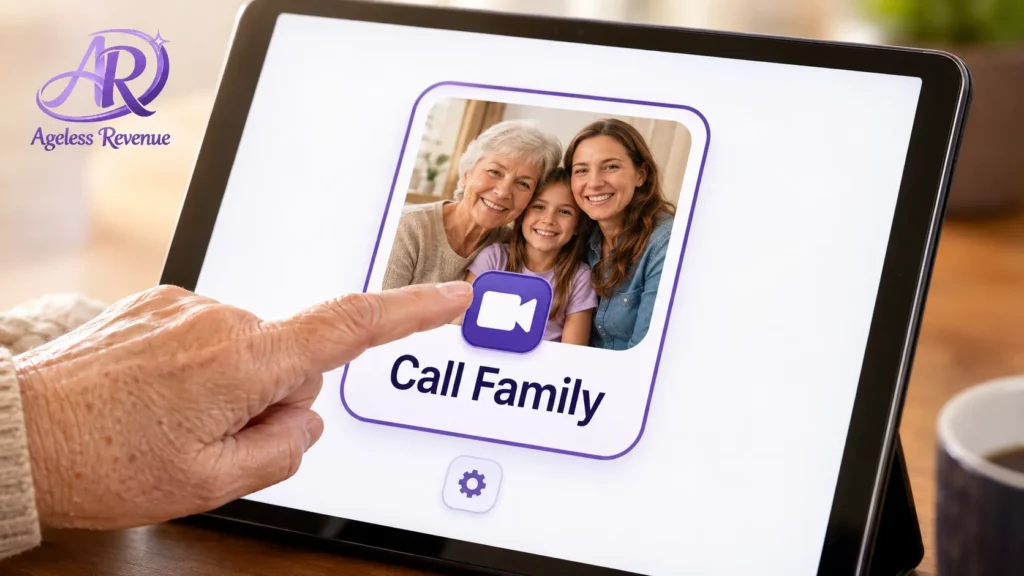
On a purpose-built device like GrandPad, calling a family member is typically a single tap on that person’s photo. On a standard tablet running FaceTime, Zoom, or WhatsApp, starting a call usually requires opening the right app, finding the right contact, and tapping the correct call icon — three or four steps that can each become a stumbling point.
Before choosing a standard tablet, it’s worth setting up a home screen shortcut directly to a specific contact’s video call, cutting that multi-step process down to one tap. Most tablets support this through a widget or shortcut feature, though the setup itself typically needs to be done by a family member the first time.
WiFi vs. Cellular: The Support Call You’re Trying to Avoid
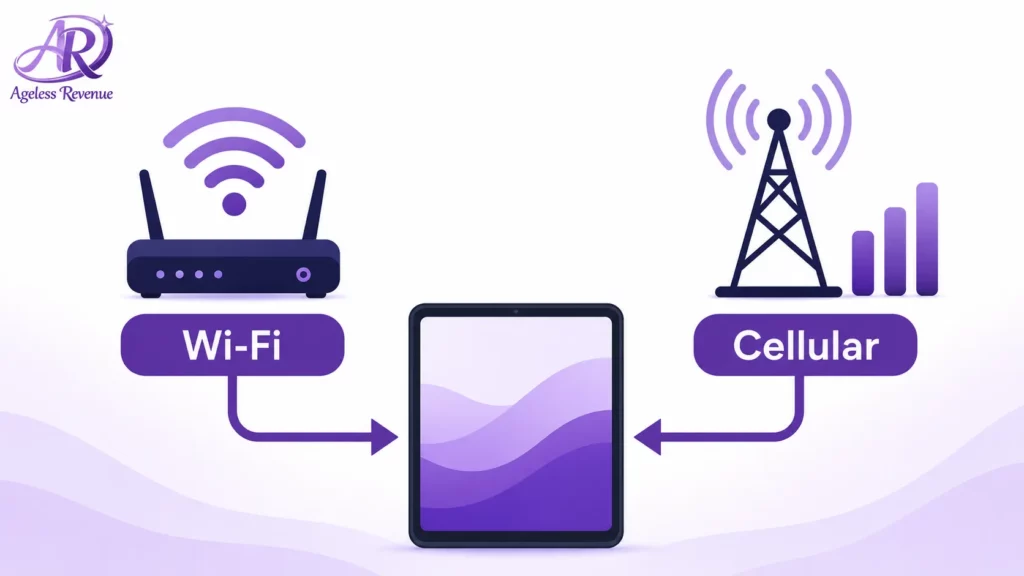
A large share of “my tablet isn’t working” calls from grandparents to adult children turn out to be a WiFi connectivity issue rather than anything wrong with the device itself — a router restarted, a password changed, or the tablet simply drifted out of range.
A tablet with a built-in cellular connection (available on purpose-built devices like GrandPad, and as an option on some iPad and Samsung models) sidesteps this problem entirely, since it connects the same way a phone does, regardless of home WiFi. This comes with an ongoing monthly service cost, but for many families, it’s worth it purely to eliminate the most common source of remote troubleshooting headaches.
Screen Size and Weight: A Real Tradeoff, Not Just a Preference
Larger screens (10 inches and up) make text, photos, and video calls easier to see, but also make the tablet heavier and less comfortable to hold for a longer session, particularly for anyone with reduced hand or wrist strength.
If the tablet will mostly sit on a table or stand during use — which is common for video calling — screen size can be prioritized without much tradeoff. If it needs to be held for reading or browsing, an 8- to 9-inch screen is often a better practical balance, especially paired with a stand or case that props it up.
Companion Apps: The Feature That Actually Reduces Family Tech Support
One of the most underrated features in this category is a companion app that lets a family member manage the tablet remotely — adding new contacts, uploading photos, or adjusting settings — without needing physical access to the device.
Purpose-built senior tablets build this in as standard. On a regular iPad, Apple’s Family Sharing and remote management features can achieve something similar, though it requires more initial setup than a purpose-built device’s companion app.
A Few Specific Options Worth Considering
For the simplest possible setup, no tech support needed: GrandPad remains the most established purpose-built senior tablet, with a single simplified home screen, built-in cellular service, and a companion app for family members to manage contacts and photos remotely.
For the best value if a family member can help with setup: A standard iPad (any recent model) with Apple’s “Assistive Access” mode enabled offers the widest app support and best long-term durability, at a lower total cost than most purpose-built alternatives.
For a budget-friendly standard option: Amazon Fire tablets are the most affordable entry point into this category, and pair well with an Amazon Household account for remote content and settings management, though the interface is less senior-simplified out of the box than an iPad’s Assistive Access mode.
For Android users already in the Samsung/Google ecosystem, Samsung Galaxy Tab models support a simplified “Easy Mode” launcher similar to Samsung’s phone offering, a good fit if other family members already use Samsung devices, and can help with support.
Monthly cellular service costs for purpose-built tablets and pricing on standard tablets both change often — check current pricing directly before purchasing.
If you’re setting up a standard iPad, Apple’s own Assistive Access guide walks through the full setup process step by step, including how a trusted family member can configure it for someone else. The AARP technology section also maintains current, senior-focused device reviews worth checking alongside this guide before buying.
Frequently Asked Questions
Do grandparents really need a tablet with cellular service, or is WiFi enough? WiFi is enough if the home connection is reliable and someone is comfortable troubleshooting it occasionally. Cellular service removes that dependency entirely, which is worth the added monthly cost for many families who’ve dealt with repeated “the internet isn’t working” calls.
What’s the easiest way to set up video calling for a grandparent who’s never used a tablet? Set up a one-tap shortcut directly to video call a specific family member, rather than relying on them to navigate to an app and find a contact each time. This single setup step, done once by a family member, makes the biggest ongoing difference.
Is a purpose-built senior tablet worth the extra monthly cost compared to a regular tablet? It depends on how much ongoing tech support is realistic for your family to provide. If a family member lives nearby and is willing to help occasionally, a standard tablet is usually a better value. If the family is spread out and wants something that essentially can’t be broken through normal use, the extra cost is often worth it.
Can I set up a standard iPad to look and work like a simplified senior tablet? Yes — Apple’s Assistive Access mode converts a full iPad into a simplified, large-icon interface with a limited, curated set of apps, achieving much of what a purpose-built device offers at a lower ongoing cost.
What screen size should I choose? Larger screens (10 inches or more) are easier to see but heavier to hold. If the tablet will mostly sit on a stand for video calls, prioritize screen size. If it will be held often for reading, an 8 to 9 inch screen is usually more comfortable.
How do I add new contacts or photos to my parents’ tablet without visiting in person? Look specifically for a companion app or remote management feature — standard on purpose-built senior tablets, and achievable on a standard iPad through Family Sharing, though the initial setup takes more steps.
The Bottom Line
The right tablet for a grandparent isn’t necessarily the most expensive or most capable one — it’s the one that matches how much ongoing tech support your family can realistically provide. Answer that question honestly first, and the right category of device becomes clear.
Video calling is usually the main reason for this purchase in the first place. See our full comparison of video calling devices for seniors to make sure whichever tablet you choose is set up to make that as easy as possible from day one.