

Easiest Laptops for Seniors New to Computers
Affiliate Disclosure: This post contains Amazon affiliate links. As an Amazon Associate, I earn from qualifying purchases. I only recommend products I’d genuinely suggest to a friend.
Buying your first computer at 65, 70, or later doesn’t mean settling for something dumbed-down — it means being deliberate about which laptop actually reduces complexity rather than one that just looks simple in a store display. The easiest laptops for seniors new to computers share a few specific traits: fewer required decisions during setup, a forgiving operating system, and genuinely responsive customer support when something goes wrong.
Here’s what actually matters, and a few specific options worth considering.
TL;DR
- Chromebooks are usually the easiest starting point for genuine beginners — fewer settings, automatic updates, and a simpler interface than Windows or Mac.
- A touchscreen is worth prioritizing if a mouse and trackpad feel unfamiliar — tapping what you want is often more intuitive than pointing and clicking.
- Battery life matters more for a laptop than it did for older desktop habits — look for a genuine 8+ hours to avoid frequent charging interruptions.
- Screen size and text scaling matter more than processor speed for almost every beginner use case (email, browsing, video calls, photos).
- Remote support options, either from the manufacturer or a family member, matter as much as the hardware — plan for this before you need it.
Chromebook vs Windows vs Mac: The Decision That Shapes Everything Else
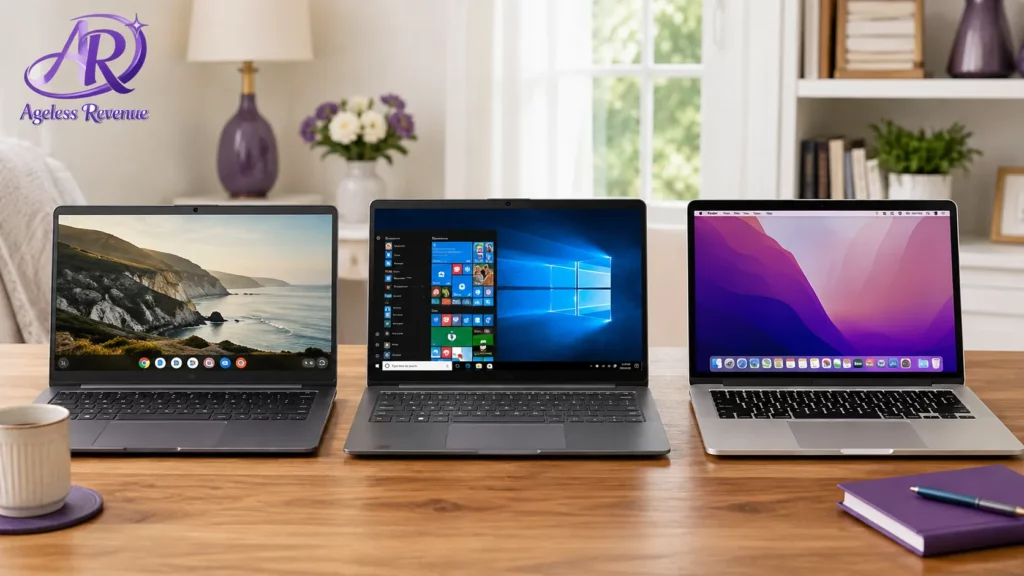
This is the first and most important decision, and it’s worth understanding honestly rather than defaulting to whatever brand is most familiar.
Chromebooks run a simplified operating system built around web browsing, email, and a small number of apps, with automatic background updates and minimal maintenance required. For someone whose main computer needs are email, browsing, video calls, and photos — which describes most beginners — a Chromebook removes an enormous amount of the complexity that trips people up on a full Windows or Mac system.
Windows laptops offer the most software compatibility and are the most familiar to anyone who used a Windows PC at work, but come with more required maintenance (updates, occasional troubleshooting) and a more complex settings menu.
MacBooks offer a clean, consistent interface and strong build quality, but at a meaningfully higher price point, and the file-management conventions differ from Windows in ways that can add a small learning curve for someone switching from a previous Windows PC.
For a genuine first-time computer user with no strong existing preference, a Chromebook is usually the easiest starting point.
Touchscreen: An Underrated Feature for True Beginners
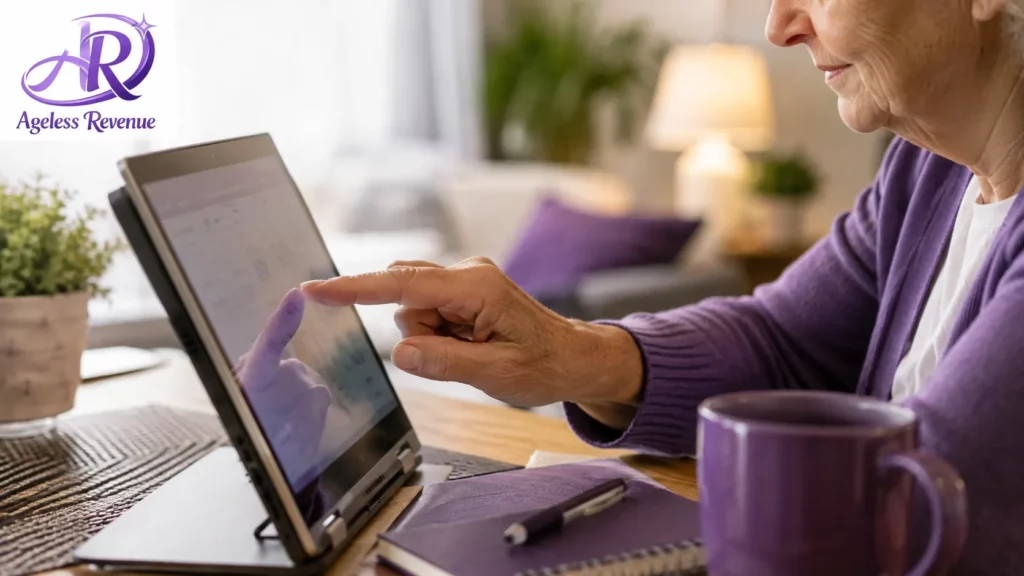
A touchscreen laptop lets you tap directly on what you want — a button, a link, an icon — rather than learning to coordinate a trackpad’s indirect pointing motion with an on-screen cursor. For someone who’s spent years using a smartphone or tablet’s touch interface but never a trackpad, this single feature can meaningfully shorten the learning curve.
Not every laptop in this category includes a touchscreen, and it does add to the cost, but it’s worth prioritizing specifically for a genuine first-time user rather than treating it as an unnecessary extra.
Battery Life: A Different Consideration Than It Used to Be
Older habits around desktop computers (always plugged in, never worrying about charge) don’t translate directly to laptops, and running out of charge mid-task is a genuinely frustrating first experience for a new user. Look for a laptop rated for at least 8 hours of real-world battery life, not just the manufacturer’s best-case marketing number, which is often optimistic.
Chromebooks, because they run a lighter operating system, frequently achieve longer real-world battery life than comparable Windows laptops — one more practical advantage for a beginner.
Screen Size and Text Scaling: Where Comfort Actually Comes From
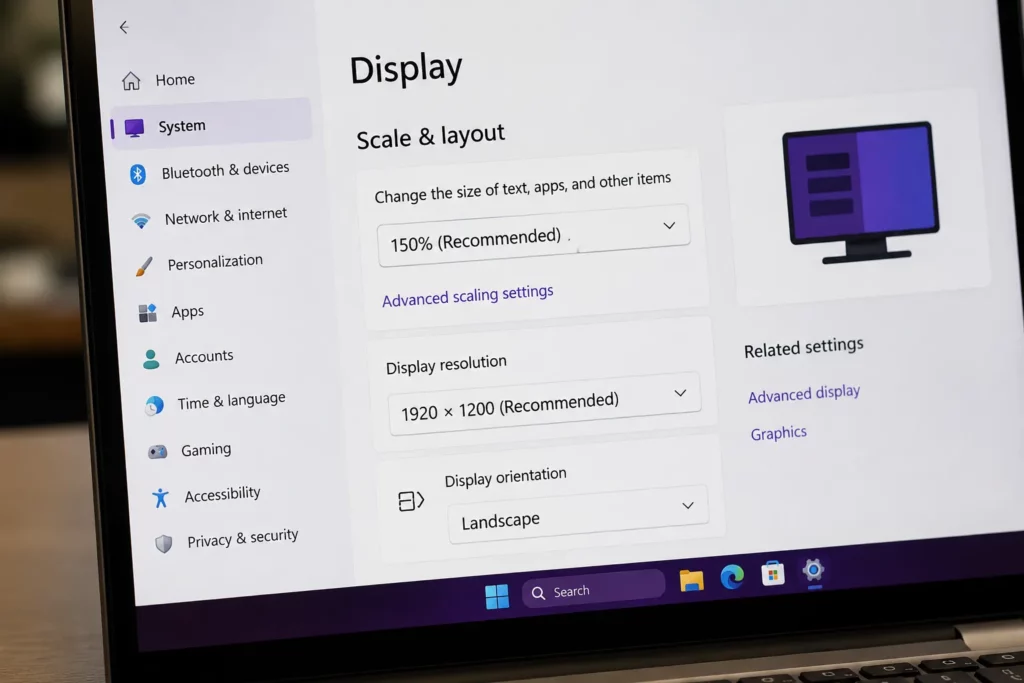
A larger screen (14 to 15.6 inches) genuinely helps readability, but text scaling matters just as much — every modern operating system lets you increase the display’s text size in settings, and doing this once during initial setup makes a bigger day-to-day difference than screen size alone.
If a family member is helping set the laptop up, increasing the default text and icon size at that first setup session is worth explicitly requesting, since most laptops ship with a smaller default size than is comfortable for most users over 60.
Remote Support: Plan for It Before You Need It
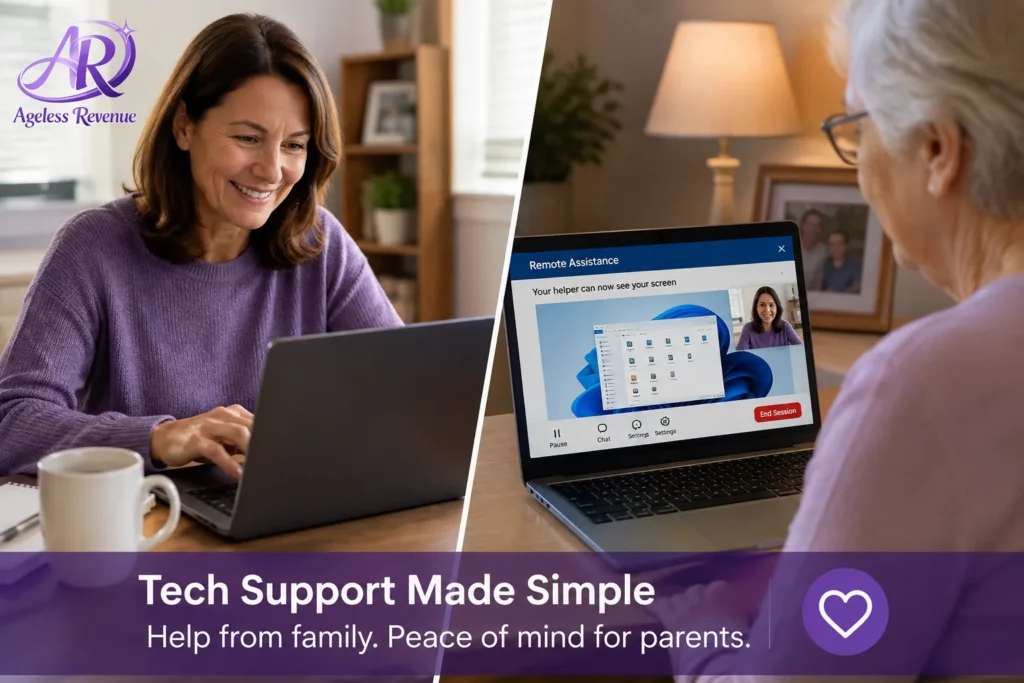
Nearly everyone new to computers will need help at some point — a confusing pop-up, a forgotten password, an app that isn’t behaving as expected. The question is whether that help is easy to get when needed.
Some laptop brands and retailers offer remote support services, letting a support technician (or, in some setups, a family member) connect to the laptop remotely and help troubleshoot without needing to be physically present. If a family member lives at a distance, checking whether a laptop supports easy remote-assistance software (built into Windows, Mac, or Chrome OS, or a separate app like Chrome Remote Desktop) before buying is worth the extra step.
A Few Specific Options Worth Considering
For the simplest possible starting point: A Chromebook in the 14-inch range with at least 8 hours of real battery life covers email, browsing, video calls, and photos with minimal ongoing maintenance — the most common recommendation for a genuine first-time computer user.
For touchscreen simplicity: Touchscreen Chromebooks combine the simplified operating system with the more intuitive tap-based interaction, worth the modest price increase for anyone coming from a tablet or smartphone background.
For Windows familiarity from a previous work computer: A mainstream Windows laptop (avoiding the lowest-tier budget models, which can feel sluggish) with a larger screen and touchscreen option bridges the gap for someone who used Windows professionally and wants that same interface at home.
For those prioritizing build quality and willing to pay more: A MacBook Air offers excellent battery life and a clean interface, worth considering if budget allows and a family member already using Apple products can help with initial setup and ongoing support.
Laptop prices vary widely by brand and specification — a solid Chromebook for beginner use is typically available well under $400, while Windows and Mac options span a wider range depending on specifications chosen.
The AARP technology section maintains regularly updated laptop and computer reviews specifically geared toward older adults, worth checking alongside this guide before making a final decision. Once your laptop is set up, the FTC’s guide to securing internet-connected devices has straightforward steps for keeping accounts and personal information protected.
Frequently Asked Questions
Is a Chromebook powerful enough for a beginner, or will I need to upgrade soon? For the core tasks most beginners need — email, web browsing, video calls, photos, simple documents — a Chromebook is genuinely sufficient and won’t feel limiting for these purposes. It becomes limiting only if you later need specialized software that requires Windows or Mac specifically.
Do I need a touchscreen, or is a trackpad fine? A trackpad works fine for most people, but a touchscreen genuinely shortens the learning curve for anyone coming from a smartphone or tablet background with no prior trackpad experience.
How much should I expect to spend on a good beginner laptop? A solid Chromebook suitable for beginner use is typically available well under $400. Windows and Mac laptops span a wider price range depending on specifications, generally starting higher than a comparable Chromebook.
Will I need ongoing tech support, or is this a one-time setup? Most beginners need occasional help beyond the initial setup — a confusing pop-up, forgotten password, or unfamiliar app. Planning for this (a nearby family member, or a laptop with accessible remote support options) before buying saves frustration later.
What screen size is most comfortable? 14 to 15.6 inches is a common comfortable range, balancing readability with portability. Text scaling in the operating system’s settings matters just as much as physical screen size for everyday comfort.
Can a family member set up and manage my laptop remotely if they don’t live nearby? Yes, using remote-assistance software built into most operating systems (or an app like Chrome Remote Desktop), a family member can connect and help troubleshoot without being physically present, once this is set up during or shortly after initial setup.
The Bottom Line
The easiest laptop for a genuine beginner isn’t necessarily the cheapest or the most heavily marketed as “senior-friendly” — it’s the one that minimizes ongoing maintenance and matches your existing comfort level, whether that’s coming from a smartphone’s touch interface or a previous Windows work computer.
If you’re still deciding between a laptop and a tablet, it’s worth comparing both. See our full guide to the easiest tablets for grandparents to make sure a laptop is genuinely the right form factor for what you actually want to do.