

Google Analytics for social media traffic, is like your website’s control room. Instead of guessing what’s happening, you can see exactly how people are finding you, which social media platforms send the best visitors, and what those visitors do after they land on your site.
When you’re putting in effort on Instagram, Facebook, Pinterest, YouTube, or TikTok, you don’t want to just hope it’s working. You want clear answers to questions like:
- Which social platform sends the most traffic?
- Which posts and campaigns actually bring people to my site?
- Do social visitors stay and read, or bounce right away?
- Are they joining my email list or clicking on my affiliate links?
This is where Google Analytics 4 (GA4) becomes your best friend. In this guide, we’ll walk step by step through:
- Setting up Google Analytics to track social media traffic
- Using UTM links so you know which specific posts and campaigns work
- Reading the key reports for SEO and social traffic
- Tracking conversions like email signups from social
- Combining analytics with your SEO and content strategy
If you want to see how this fits into your broader social strategy, you can pair this article with SEO for Social Media Marketing and Successful Social Media Marketing Strategies. Together, they give you both the “what to do” and the “how to measure it.”
Step 1: Set Up Google Analytics 4 for Your Website
If you haven’t set up Google Analytics 4 (GA4) yet, start here. Think of GA4 as your website’s dashboard that tracks all the visitors from Google, social media, email, and more.
1. Create a GA4 Property
- Go to analytics.google.com and sign in with your Google account.
- Click the Admin gear icon (bottom-left corner).
- Under the Account column, choose or create your account.
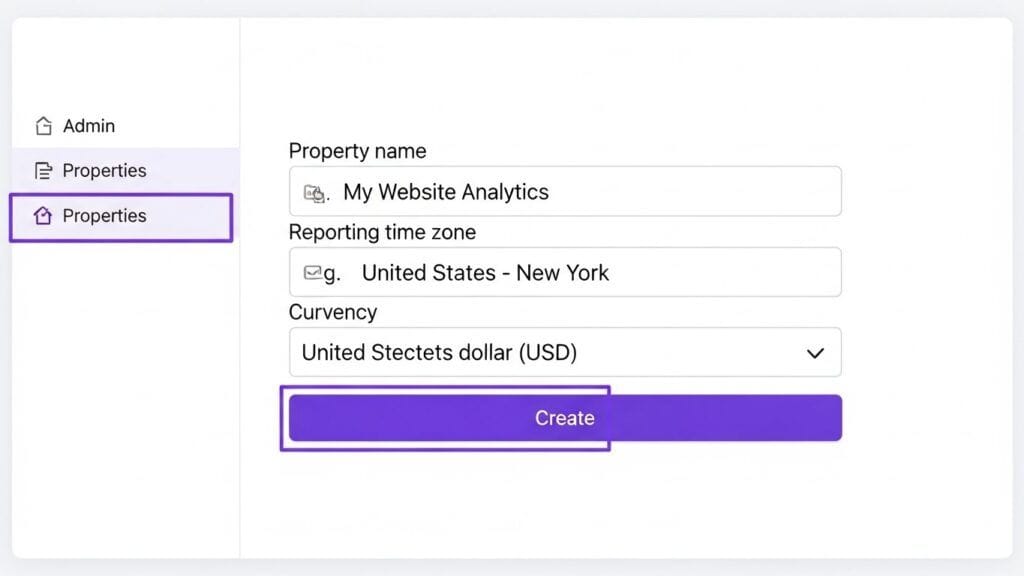
- Under the Property column, click Create Property.
- Enter a name (e.g., “AgelessRevenue GA4”), set your time zone and currency, then click Next and complete the setup steps.
Once your GA4 property is created, Google will give you a unique Measurement ID (starts with G-).
2. Install the GA4 Tag (Basic Option)
If your theme or plugin lets you paste tracking code (like in a header script box), you can install GA4 directly:
- In GA4, go to Admin → Data Streams, select your website stream.
- Click View Tag Instructions → Install Manually.
- Copy the
<script>code snippet. - Paste it into the head section of your site (often via your theme or a “Header/Footer Scripts” plugin).
- Save and clear caching if needed.
3. Install via Google Tag Manager (Recommended)
For more flexibility and cleaner management, use Google Tag Manager (GTM):
- Go to tagmanager.google.com and create a container for your website.
- Install the GTM code on your site (usually once in the head and once in the body, following Google’s instructions).
- Inside Tag Manager, click Tags → New, choose Google Analytics: GA4 Configuration.
- Paste your Measurement ID from GA4.
- Set the trigger to All Pages and publish your container.
Using GTM means you can add or adjust tracking later—without editing your theme files again.
Step 2: Make Sure, with Google Analytics for Social Media Traffic Is Being Tracked
Once GA4 is installed, let’s confirm that visits from social media are actually being recorded.
Check Real-Time Reports
- Open your site in one browser tab.
- Open GA4 in another tab and go to Reports → Real-time.
- On your phone or computer, click a link to your site from one of your social media profiles (e.g., your Instagram bio link or a Facebook post).
- Watch the Real-time report and confirm that at least one active user appears.
If you see yourself show up, GA4 is getting data. Now we’ll make it more specific so you can tell which social posts and platforms are working best.
Step 3: Use UTM Links to Track Social Campaigns Properly
By default, Google Analytics can tell that traffic came from “social,” but it doesn’t always know which specific post, campaign, or button drove that visit.
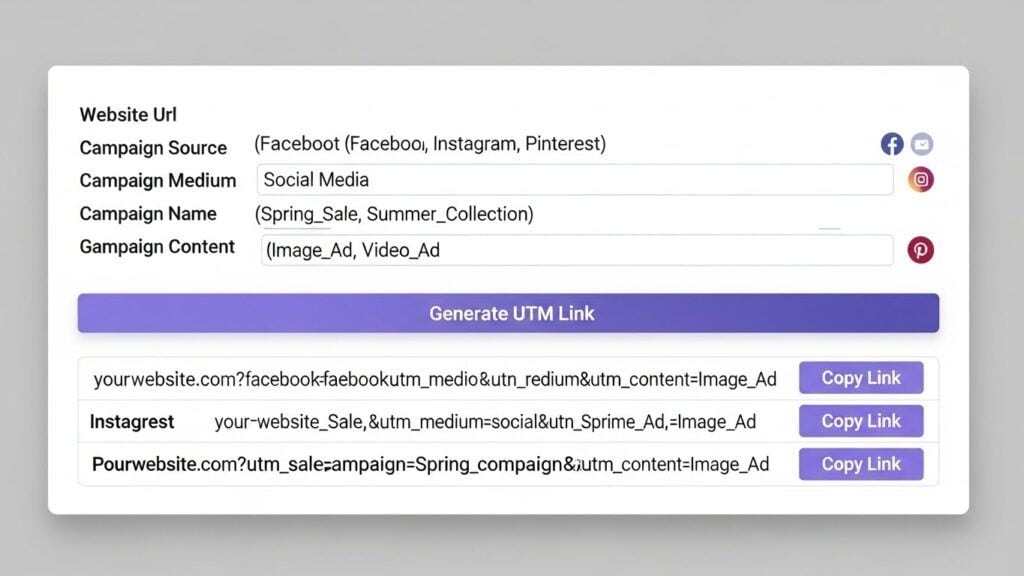
That’s where UTM parameters come in. They’re tiny bits of text you add to the end of your link so Analytics can sort and label the traffic correctly.
Core UTM Parameters
- utm_source – Where the traffic came from (e.g.,
facebook,instagram,pinterest). - utm_medium – The type of traffic (e.g.,
social,social_paid). - utm_campaign – The specific campaign name (e.g.,
spring_launch,email_optin). - utm_content (optional) – To differentiate different links in the same post (e.g.,
bio_link,story_swipe).
Example: UTM Link for a Pinterest Pin
Your base URL:
UTM-tagged URL for a Pinterest pin:
Later in GA4, you’ll be able to see exactly how many visitors came from this campaign on Pinterest.
How to Build UTM Links Step by Step
- Go to Google’s campaign URL builder (see the UTM campaign URL builder guide).
- Paste your base URL (the page you want traffic to land on).
- Fill in utm_source (e.g.,
facebook,instagram,pinterest). - Fill in utm_medium (e.g.,
socialorsocial_paid). - Fill in utm_campaign with a name you’ll recognize (e.g.,
social_analytics_launch). - Optionally, add utm_content to differentiate bio vs. story vs. button.
- Copy the generated URL and use it in your social post, bio, or ad.
Use UTM links for your most important posts and campaigns—especially where you want to know if your audience is actually clicking and converting.
Step 4: Read the GA4 Reports for Social Media Traffic
Now that traffic is flowing, let’s see how to read the data and track your SEO performance from social.
1. Traffic Acquisition: Where Social Fits In
In GA4, go to:
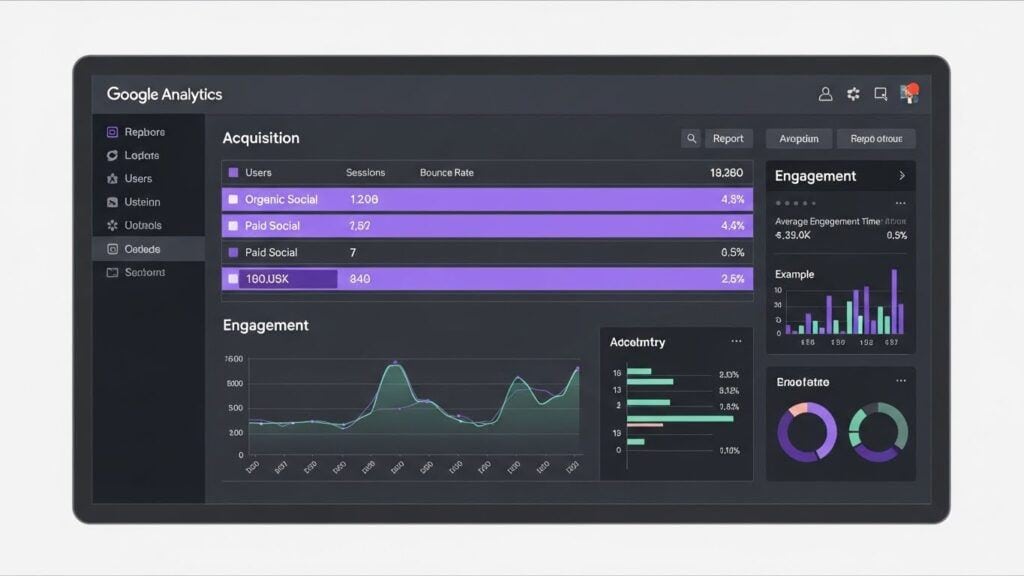
- Reports → Acquisition → Traffic acquisition.
- Look for the row called Default channel group.
- Here you’ll see channels like Organic Search, Organic Social, Paid Social, Direct, etc.
This view tells you:
- How many sessions are coming from Organic Social vs. Organic Search
- How engaged social visitors are (engagement time, engagement rate)
- How many conversions social sessions produce (if you’ve set up conversions)
For more detail, see the official Google Analytics 4 traffic acquisition help and compare it with what you see in your own reports.
2. Drill Down by Source and Medium
Still in Traffic acquisition:
- Use the dropdown above the table to switch from Default channel group to Source / medium.
- Here you’ll see entries like
facebook.com / social,instagram.com / social,pinterest.com / social, etc.
This lets you compare:
- Which platform sends the most visitors
- Which platform sends visitors who stay longer
- Which platform sends visitors who convert more often
3. See Which Pages Social Visitors Land On
To understand how social traffic affects your SEO and content strategy, you need to know which pages they’re landing on.
- Go to Reports → Engagement → Pages and screens.
- Add a filter for Session default channel group = Organic Social or Paid Social.
- Now you’ll see your top landing pages for social visitors.
This reveals:
- Which articles or landing pages are most attractive to your social audience
- Where you might want to add more internal links, CTAs, or opt-in offers
- Which topics to expand or repurpose for more social content
For example, if you notice your guide on Best Practices for Social Media Affiliate Marketing gets a lot of social traffic, that’s a strong signal to create more posts, Reels, and pins that link to it.
Step 5: Track Conversions from Social Visitors
Traffic is nice, but conversions are what truly matter—email signups, downloads, affiliate clicks, or sales.
1. Define Your Key Actions
First, decide which actions you want to count as conversions from social traffic, such as:
- Email newsletter signups
- Click-throughs to your main affiliate offers
- Contact form submissions
- Account registrations or lead magnet downloads
2. Set Up Events and Conversions in GA4
- In GA4, click Admin → Events.
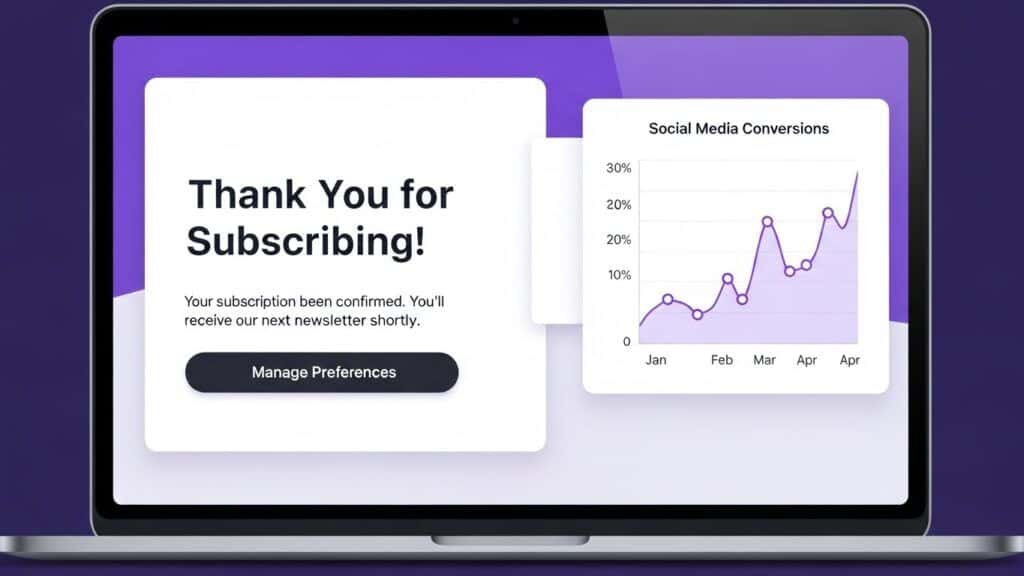
- If your email signup form redirects to a “thank you” page, create an event triggered by visits to that page (for example, a condition like
page_location contains /thank-you/). - Once the event is being recorded, turn on the toggle that marks it as a conversion.
Now GA4 will track this action as a conversion, and you’ll be able to see how many of those conversions come from social traffic.
3. View Conversions by Channel or Campaign
Go back to:
- Reports → Acquisition → Traffic acquisition
Add the Conversions column to your table if it’s not already visible. Filter or compare:
- Default channel group: Compare Organic Social vs. Organic Search.
- Source / medium: Compare
facebook.com / socialvs.instagram.com / social, etc. - Session campaign: Compare the performance of different tagged campaigns using your UTM links.
This shows which social platforms and campaigns are not just driving traffic but also creating signups, leads, and revenue.
Step 6: Use Analytics Insights to Improve Your SEO and Content Strategy
Now that you know where social traffic is coming from and what it does on your site, you can feed that information back into your SEO and content planning.
Look for High-Engagement Pages from Social
In Pages and screens reports filtered for social traffic, look for pages with:
- High engagement time
- Low bounce rates
- Higher conversion rates
These pages are your “winners.” Consider:
- Updating and expanding them
- Creating spin-off articles on similar topics
- Turning them into videos, carousels, or pins
- Adding more internal links to other key articles, such as Affiliate Marketing 101: Beginner’s Guide for Retirees
Combine Analytics with Keyword Research
Analytics tells you which pages and topics perform well. A keyword tool helps you discover related terms your audience is searching for.
Take your strongest-performing topics and plug them into a keyword tool like the Jaaxy keyword tool. Look for:
- Long-tail keywords with lower competition
- Question-style searches you can turn into FAQ sections
- Related topics you can cover in supporting posts
This is how you build content clusters that work well both for search engines and for your social audience.
Refine Your Social Posting Strategy
Use what you’ve learned in Google Analytics to adjust your social content:
- Post more often about topics that drive engaged traffic.
- Test different CTAs (“Read the full guide,” “Get the checklist,” “Learn the 5 steps”).
- Experiment with new formats (Reels, Stories, carousels) linking to your top-performing pages.
- Stop or reduce promoting pages that bring low-engagement, low-conversion traffic.
For more ideas on measuring social performance, you can compare your approach with the Hootsuite guide to social media analytics.
FAQs: Using Google Analytics to Track Social Media Traffic
Yes. Google Analytics can track traffic from major social platforms like Facebook, Instagram, Pinterest, X (Twitter), LinkedIn, TikTok and more, as long as visitors click a link that leads to your website. GA then groups this traffic under channels such as Organic Social or Paid Social.
2. What is the difference between Organic Social and Paid Social in Google Analytics?
Organic Social usually refers to unpaid visits from your social media content, such as posts or stories that people click on naturally. Paid Social refers to visits that come from social media ads or boosted posts. Separating the two helps you see how much traffic comes from free versus paid activity.
The most reliable way is to use UTM-tagged links for your social posts. You can add utm_source, utm_medium and utm_campaign parameters to your URLs, then view the performance of those tagged links in Google Analytics 4 reports. Over time, this shows you which platforms and campaigns send the most engaged visitors.
You don’t strictly need Google Tag Manager, but it makes managing your analytics and tracking scripts much easier. You can install GA4 either directly on your site or through Tag Manager. If you plan to add more tracking in future, Tag Manager is usually the cleaner long-term solution.
In Google Analytics 4, social media traffic often appears in your real-time reports within minutes. For standard Acquisition and Engagement reports, expect data to be available within a few hours. For more stable, complete views, it’s usually best to evaluate trends over several days or weeks.
Conclusion: Let Your Numbers Guide Your Social SEO Strategy
Using Google Analytics to track your SEO performance from social media traffic means you’re no longer guessing which posts or platforms work. Instead, you’re making decisions based on real data.
To recap:
- Set up GA4 properly and confirm that traffic is being tracked.
- Use UTM links for important social posts and campaigns.
- Watch your Acquisition and Engagement reports to see how social visitors behave.
- Set up conversions so you know which social campaigns actually generate signups and leads.
- Use what you learn to refine your content topics, SEO focus, and posting strategy.
Start with one step at a time—maybe adding UTM tags to your next few posts and checking the Acquisition report after a week. As you get comfortable, layer in conversions, deeper analysis, and new content ideas shaped by your data.
For your next steps, you can connect this guide with SEO for Social Media Marketing, Successful Social Media Marketing Strategies, and Best Practices for Social Media Affiliate Marketing. And whenever you’re researching new topics to write about, let the Jaaxy keyword tool help you find profitable keywords your audience is already searching for.